
Find the Feature and Agree to the Terms
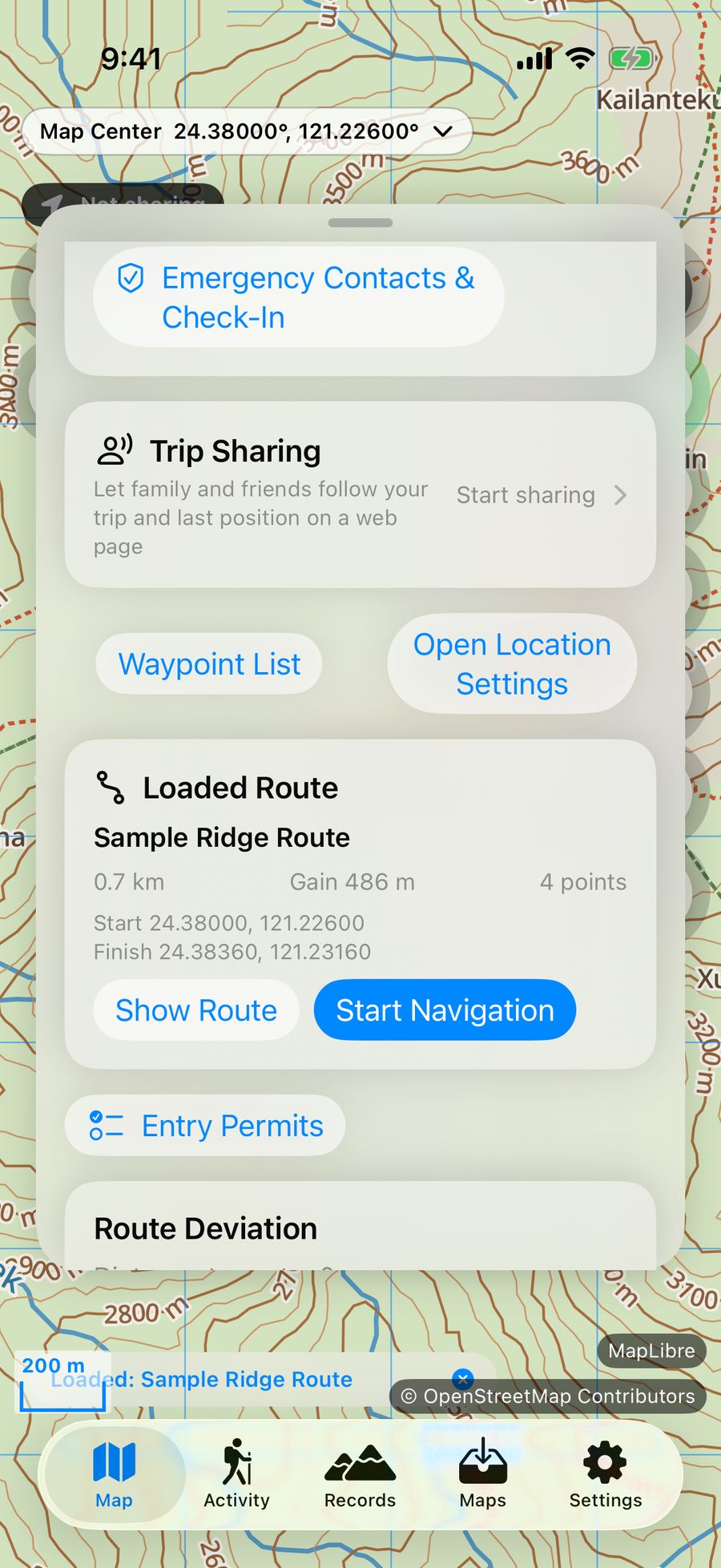
- On the 'Map' tab, tap 'Info' to open the info panel, scroll down to the 'Trip Sharing' card, and tap it.
- On first use, a message titled 'Before Using Trip Sharing, Please Confirm' will appear, explaining what will be uploaded, who can view it, how long it's retained, and that it cannot replace emergency calls.
- After reading, toggle on 'I have read and understood the above information', then tap 'Agree and Continue'. You can also tap 'Read Full Privacy Policy' to view details.


To disable it later, you can tap 'Withdraw Consent and Disable Trip Sharing' at the bottom of the 'Create Trip Sharing' screen, which will revoke the current link and delete location data on the server.
Create a Trip


| Field | Description |
|---|---|
| Trip Name | Defaults to the currently loaded route name (or 'Mountain Climbing Trip' if no route is loaded); you can modify it, with a maximum of 60 characters. |
| Display Currently Loaded Route on Webpage | When enabled, your designated contact can see your planned route on the webpage (requires loading a GPX route first). |
| Scheduled Departure / Scheduled Return | Return time must be at least 10 minutes after departure time and not exceed 30 days. |
| Buffer Time | None, 30 minutes, 1, 2, 3, 4, or 6 hours; defaults to 2 hours. If the scheduled return time plus buffer time passes without confirmation, the webpage will display 'Overdue'. |
| Start Location Reporting Immediately After Creation | When enabled, location reporting starts when you create the trip. If disabled, you can tap 'Start Location Reporting' on the trip page later. |
Trip Name
Description:Defaults to the currently loaded route name (or 'Mountain Climbing Trip' if no route is loaded); you can modify it, with a maximum of 60 characters.
Display Currently Loaded Route on Webpage
Description:When enabled, your designated contact can see your planned route on the webpage (requires loading a GPX route first).
Scheduled Departure / Scheduled Return
Description:Return time must be at least 10 minutes after departure time and not exceed 30 days.
Buffer Time
Description:None, 30 minutes, 1, 2, 3, 4, or 6 hours; defaults to 2 hours. If the scheduled return time plus buffer time passes without confirmation, the webpage will display 'Overdue'.
Start Location Reporting Immediately After Creation
Description:When enabled, location reporting starts when you create the trip. If disabled, you can tap 'Start Location Reporting' on the trip page later.
- After filling in the fields, tap 'Review and Create'.
- Confirm the trip details, departure time, return time, and overdue determination time in the summary, then tap 'Create Trip and Get Link'.
- On first creation, iOS will ask if you allow notifications; it's recommended to allow notifications to receive return reminders.
Share the Link with Your Contact


- Share Link: Opens the system sharing panel with a message containing the trip name, scheduled return time, link, and a reminder to call 119 or 112 if unable to contact after the scheduled time.
- Copy Link: Copy the URL to manually paste into messaging apps.
- Display QR Code: Let the other person scan it in person.
The 'Trip Information' section displays the scheduled return time, overdue determination time, link expiration, and last upload time. The link validity period depends on the trip status; see Data Retention and Privacy.
After Departure: Location Reporting, Reminders, and Completion

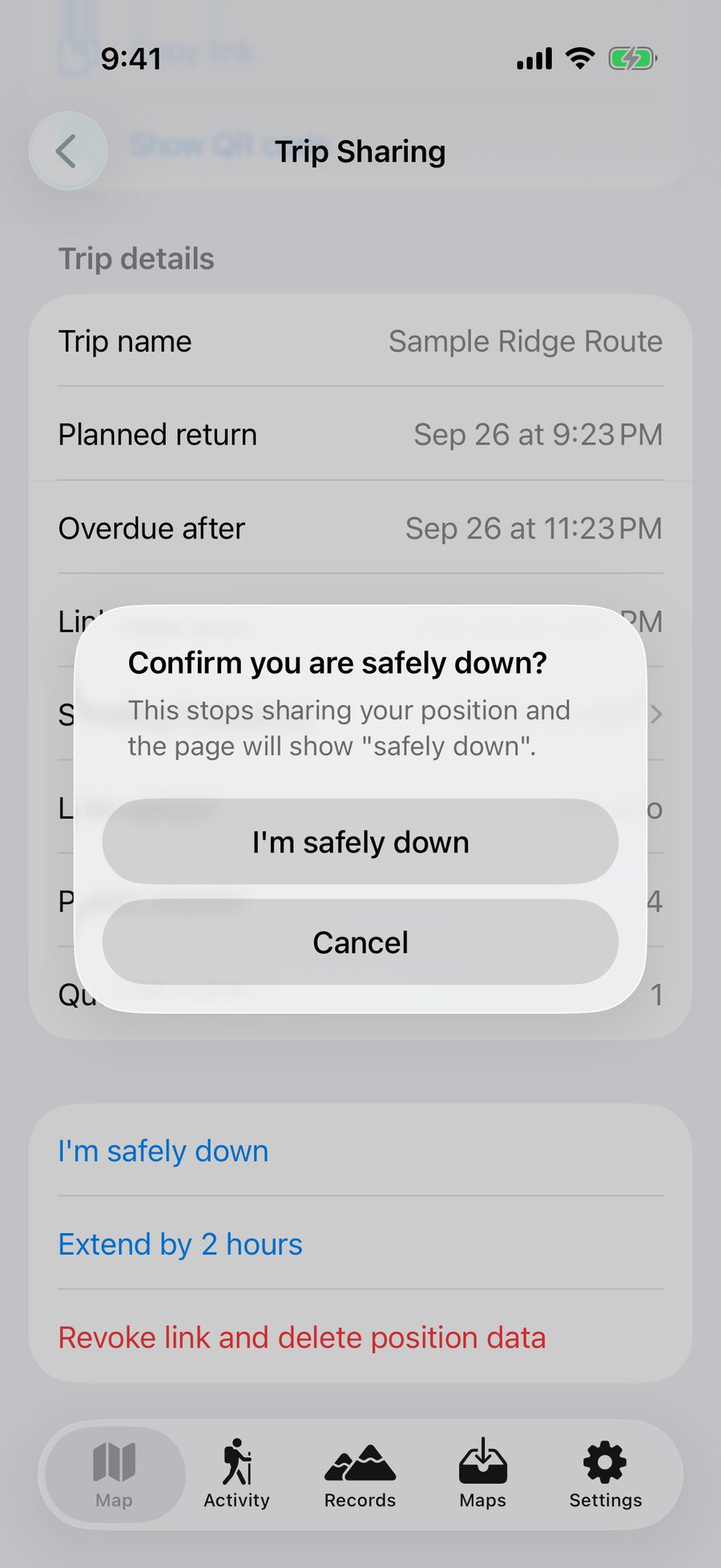
- Location Reporting: Your phone sends a location update at the time or distance interval you chose (about every 10 minutes by default). Each update includes coordinates, time, and accuracy, plus altitude and battery level when available. If there is no signal, updates are stored on your phone and sent when the connection returns. The 'Pending Location Points' section on the trip page shows how many are waiting.
- 'Always' Location Permission: Without this permission, the app cannot continuously report your location in the background. The trip page will remind you and provide a shortcut to 'Open Location Settings'.
- Reminder Notifications: 30 minutes before the scheduled return time, you'll be reminded if you need to extend; at the scheduled return time, you'll be asked if you've completed the trip; 15 minutes before the overdue determination time, you'll be reminded of the upcoming overdue status (only if buffer time is set).
- Extend 2 Hours: If you need more time, tap once to extend your scheduled return time by 2 hours and let your designated contact know the plan has changed.
- Safely Returned: After confirmation, location reporting stops and your designated contact's page will display 'Safely Returned'.
- Revoke Link and Delete Location Data: Immediately delete location and route data on the server; the link becomes inactive right away.
After the trip ends or is revoked, you can tap 'Complete and Clear This Trip' to remove the record from your phone, then create a new trip. Only one trip can be in progress at a time.
What Your Contact Sees
Your designated contact can open the link on their phone or computer browser (in the form of akimap.app/g/…). The page automatically updates approximately every 30 seconds, with times displayed in Taiwan Time. On the map, the blue dashed line represents the planned route, the pink solid line represents the reported track, the green dot marks the starting point, and the pink circle marks the most recently reported location.


| Webpage Display | What It Means |
|---|---|
| Not Yet Departed | The scheduled departure time hasn't arrived yet; location reporting will begin once the climber departs and has signal. |
| No Location Received Yet | The scheduled departure time has passed, but no location has been received yet (possibly due to lack of signal). |
| Trip in Progress | Location has been received; the page displays the last location and scheduled return time. |
| Over 1 Hour Without New Location | Yellow alert. Mountainous areas often lack signal; this doesn't necessarily indicate an emergency. The page only displays the last uploaded location. |
| Past Scheduled Return Time | The overdue determination time has passed without confirmation. The page advises calling 119 or 112 if unable to contact the climber, and to provide the last location and time. |
| Safely Returned | The climber has confirmed completion of the trip. |
| This Trip Link is No Longer Valid | The link has been revoked or exceeded the retention period. |
Not Yet Departed
What It Means:The scheduled departure time hasn't arrived yet; location reporting will begin once the climber departs and has signal.
No Location Received Yet
What It Means:The scheduled departure time has passed, but no location has been received yet (possibly due to lack of signal).
Trip in Progress
What It Means:Location has been received; the page displays the last location and scheduled return time.
Over 1 Hour Without New Location
What It Means:Yellow alert. Mountainous areas often lack signal; this doesn't necessarily indicate an emergency. The page only displays the last uploaded location.
Past Scheduled Return Time
What It Means:The overdue determination time has passed without confirmation. The page advises calling 119 or 112 if unable to contact the climber, and to provide the last location and time.
Safely Returned
What It Means:The climber has confirmed completion of the trip.
This Trip Link is No Longer Valid
What It Means:The link has been revoked or exceeded the retention period.
Need an answer? Visit Support & FAQ. The guide follows the latest app version; screens may differ.