
Saved Tracks
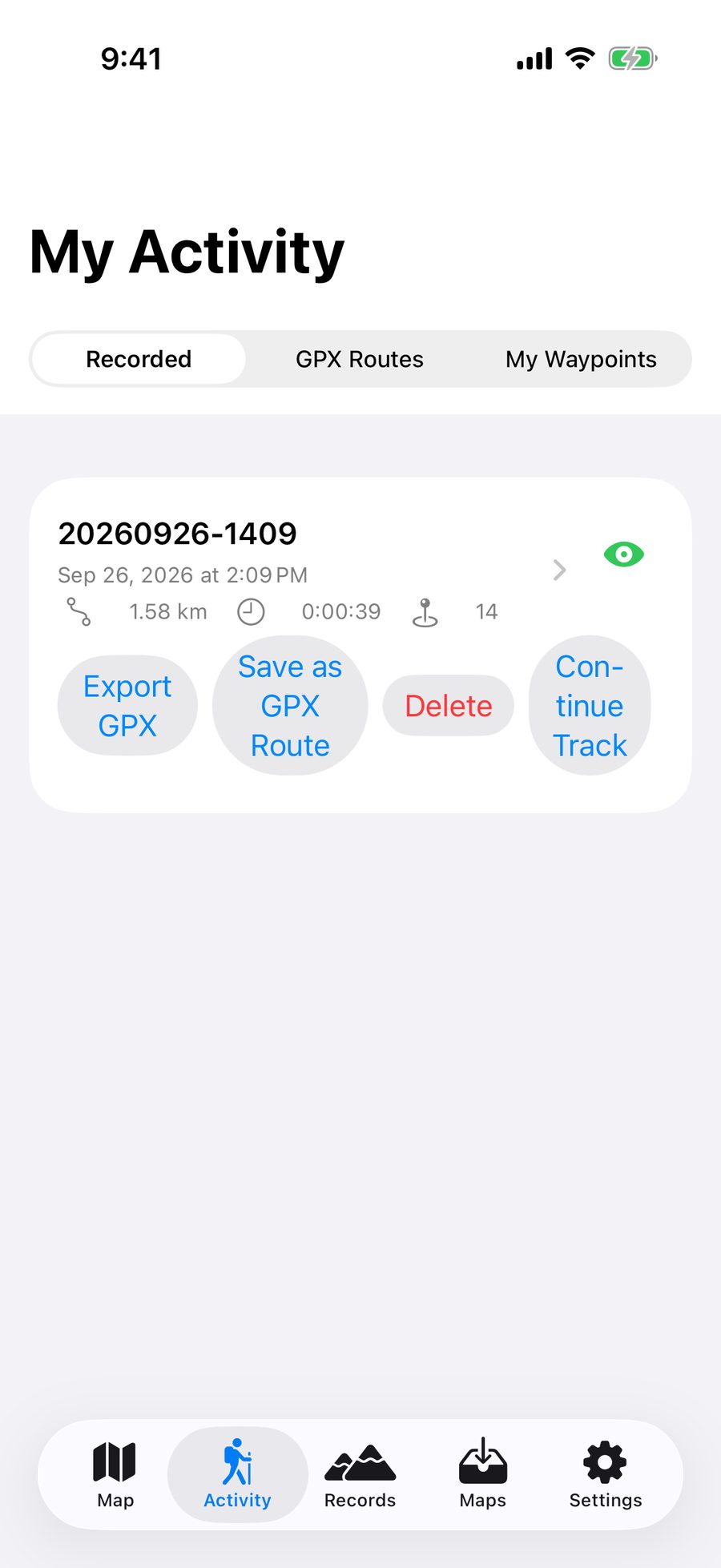

Track details include distance, time, elevation gain, elevation loss, maximum and minimum elevation, uphill and downhill distance, moving time, speed, and the number of waypoints and recorded points.
Import and View GPX Routes
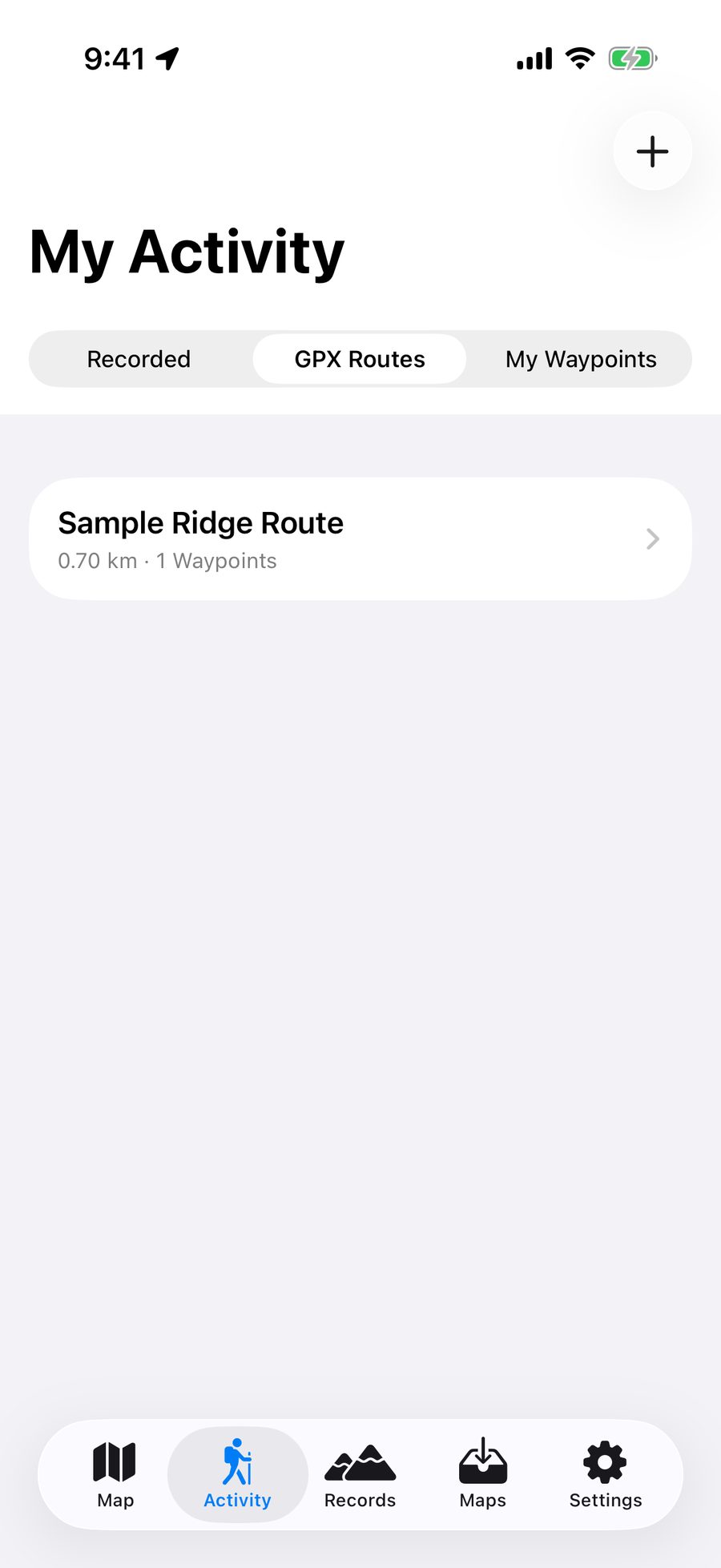
- Tap the add button in the top right corner of "Tracks → GPX Routes", or tap the GPX import button in the map tab, and select a GPX file.
- You can also open a GPX file directly from the "Files" app or share menu using Aki Map. After import, it will display "GPX route imported".
- Enter the route details to preview the route and photos, and choose "View on map" (switch to the map and center the route) or "Navigation" (additionally enable GPS, center the route, and start live tracking).

Route Details: Elevation Profile, Playback and Photos

-
View on Map
Switch to the map tab and center this route without activating GPS (GPX routes only).
-
Replay Route
Play the entire route in full-screen animation with adjustable playback speed and switchable tracking or distant view; photos along the way will pop up automatically.
-
Elevation Profile
Display elevation changes along the route in a chart.
-
Photos
Multiple photos can be selected and deleted; photos can be saved to the photo library, or imported from the photo library (only photos with GPS coordinates will be added).
-
Edit Recording Points
Browse original GPS points, multi-select and delete, or trim extra points at start and end.
-
Export, Pre-trip Package PDF
The toolbar in the top right can export GPX or generate a pre-trip package PDF for the route; the free version has monthly limits for each.

Copy, Rename and Delete
Long press on saved tracks and GPX route items to bring up the menu: Copy (make a complete copy including recording points, photos and waypoints, which are independent of each other) and Edit Name. When deleting, the app provides a brief undo prompt.
Waypoints and Waypoint Collections
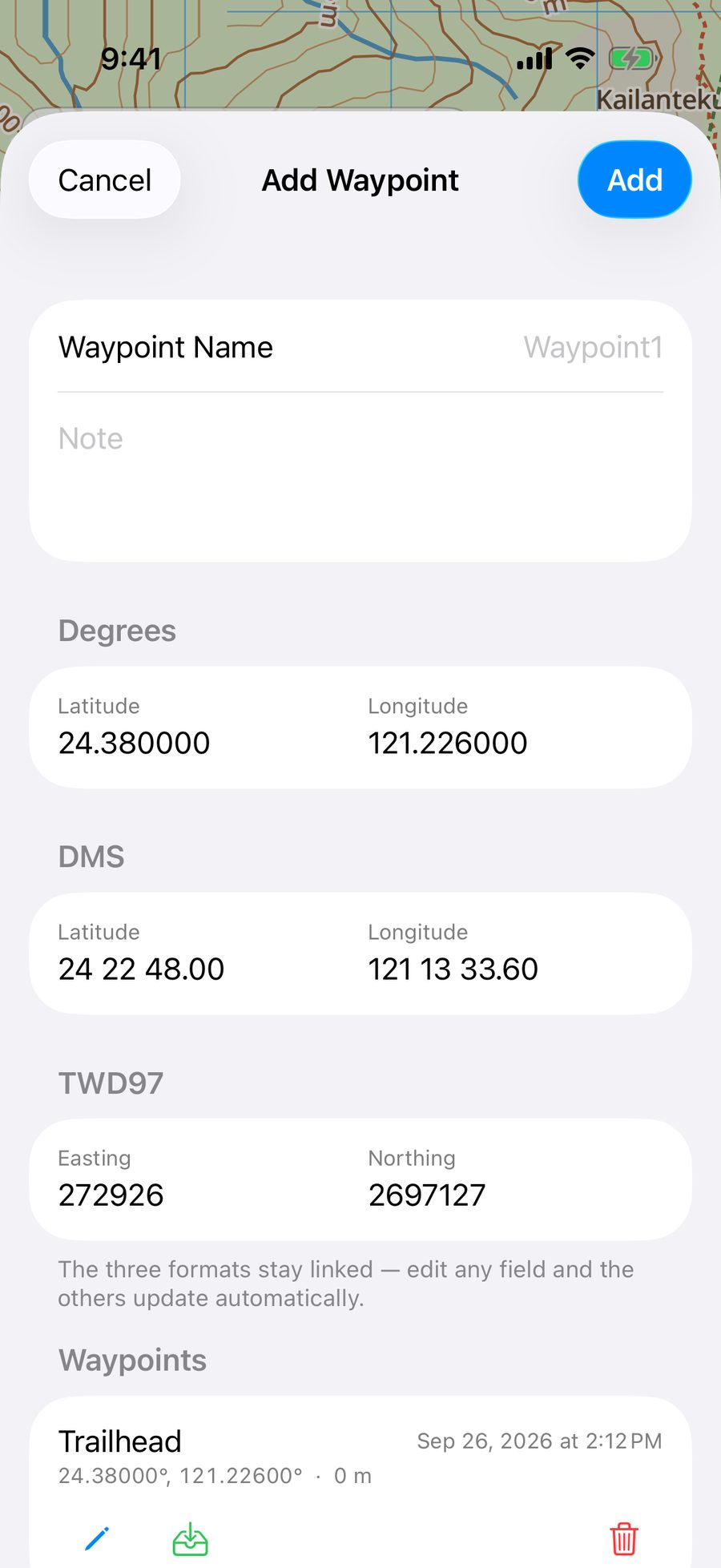
- Tap "Add Waypoint" in the map tab to open the add screen.
- Enter the name (leaving blank will automatically number as "Waypoint 1", "Waypoint 2"...) and notes, confirm the coordinates and tap "Add".
- The added waypoint will remain in the list on this screen and will not be automatically saved to the collection.
- Tap the green tray icon for that entry in the list (or swipe right and tap "Add to Waypoint Collection") to copy it into "Tracks → Waypoint Collection". The original entry in the list will be retained, and the two are independent.

-
Show on Map / Hide from Map
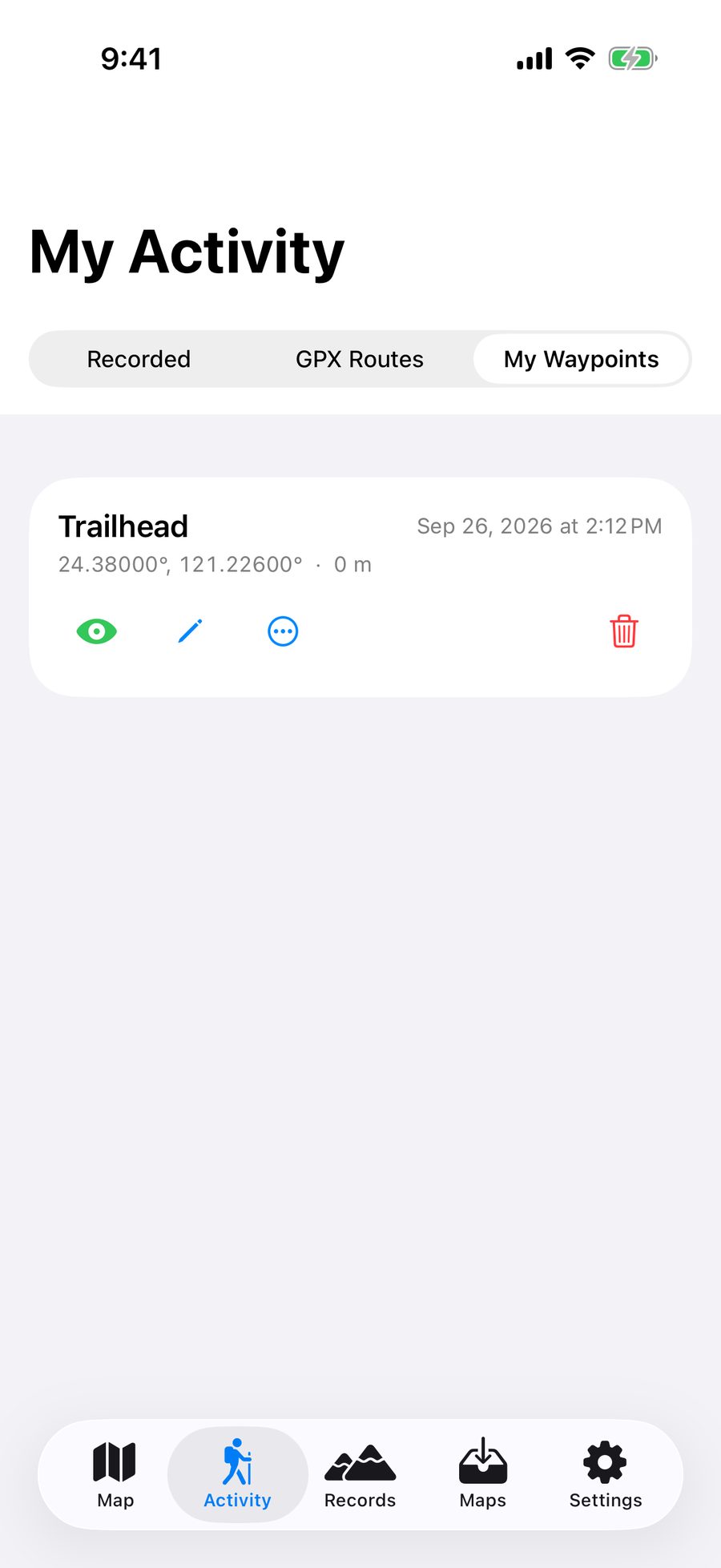
The eye icon on the far left of each entry (collection only). Green indicates display on the map, red indicates hidden; useful when there are many waypoints to avoid cluttering the map with pins.
-
Edit Name and Notes
Tap the pen icon, or swipe right and select "Edit Name".
-
Copy, Jump to Map
Tap "⋯" to create an independent copy, or directly switch to the map and center on that point (collection only).
-
Delete
Tap the trash bin, or swipe left to the end.
Need an answer? Visit Support & FAQ. The guide follows the latest app version; screens may differ.