
Chapter 8 of 173 topics
Adding Photos
- Choose Edit ▸ Photo Match and pick the track or route.
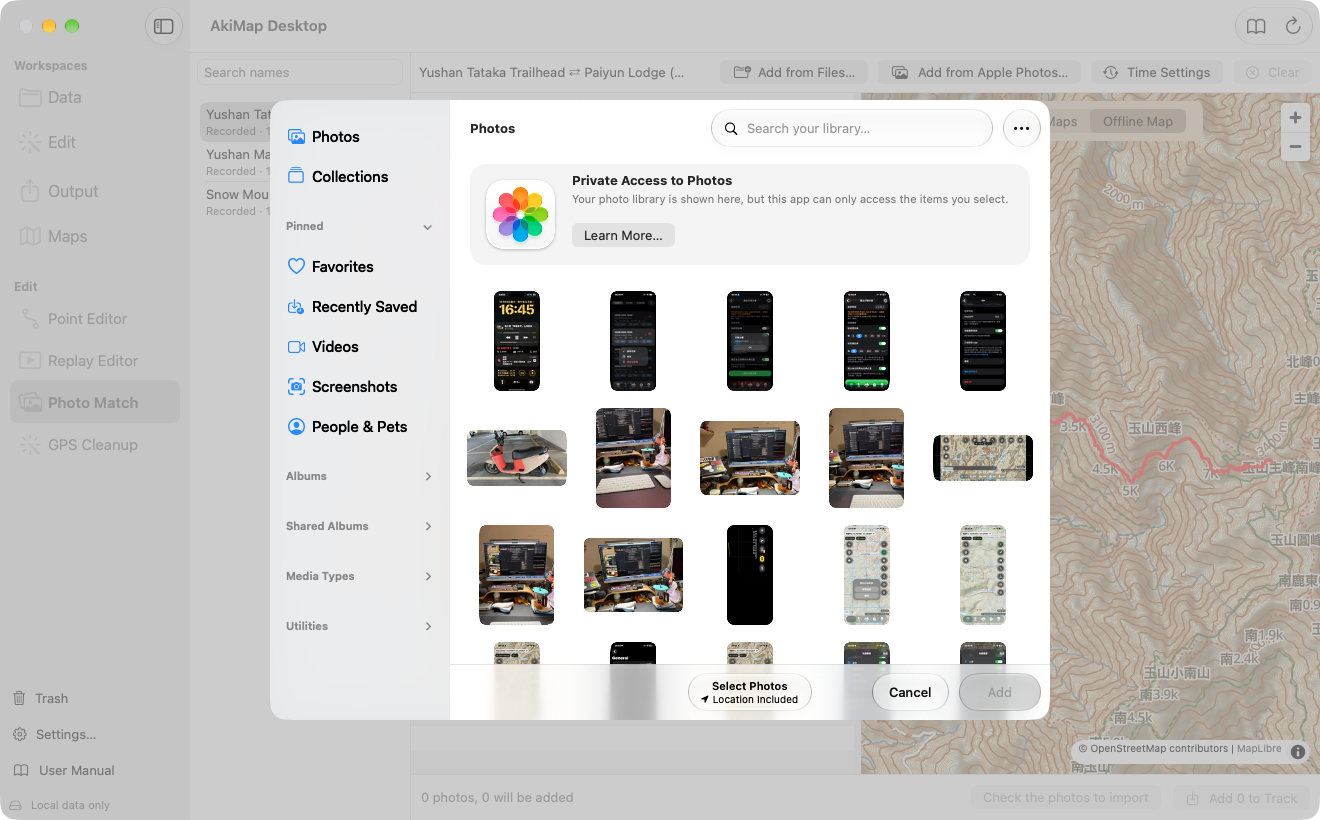
- Drag photo files into the window, or click “Add from Files…” or “Add from Apple Photos…”. JPEG, HEIC and similar formats work.
- Check the match results and untick photos you do not want.
- Click “Add N to Track” at the bottom right.
Photos are stored on the track as JPEG; your original files are not changed.
How Photos Are Matched
| Result | Meaning |
|---|---|
| Photo's own GPS | Uses the photo's GPS; if it is farther from the route than the limit (1,000 m by default, changeable in Time Settings) a warning is shown. |
| Estimated from time | Without GPS, the capture time is compared with the track's timestamps to find where you were. |
| Already on the track | This photo was added before and is not added again by default. |
| Outside the track's time range / Route has no time data / No time or coordinates | It cannot be placed and is not ticked. |
Photo's own GPS
Meaning:Uses the photo's GPS; if it is farther from the route than the limit (1,000 m by default, changeable in Time Settings) a warning is shown.
Estimated from time
Meaning:Without GPS, the capture time is compared with the track's timestamps to find where you were.
Already on the track
Meaning:This photo was added before and is not added again by default.
Outside the track's time range / Route has no time data / No time or coordinates
Meaning:It cannot be placed and is not ticked.
Correcting the Camera Clock
A camera clock is often seconds to hours off. When some photos carry GPS, a suggestion appears at the top, such as “Camera time is 19 s slow”; click Apply. You can also adjust manually with Time Settings.
- Camera Time Zone is only used when a photo has no recorded time zone or GPS time.
- Time Offset: if the camera was slow, enter a positive number; it is added to each capture time. Use +1 / −1 hour for quick steps and Reset to clear it.
- Match results and map positions update immediately.
Screens may vary by app version. See Support and FAQ if you need help. Support